- Setup Extention
- SID & Auth Token
- Client
- Default number
- CRM domain
- CRM details
- Set up ZOHO CRM
- Set up Insightly CRM
- Set up AgileCRM
- Set up Hubspot CRM
- Set up manual script
- Easy click
- Voicemail Drop
Easy click
The phone numbers within your CRM web-pages will be automatically highlighted in blue. This option is used to select the action when the phone number is clicked.
Choose Call to call the phone number.
Choose SMS to send an SMS.
If you choose Ask, you will be provided an option to select call or SMS
Voicemail Drop
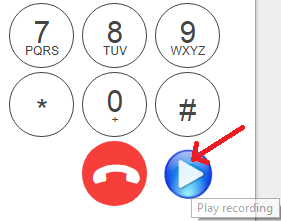
Record your voice messages for your outbound calls. When one or more messages are saved, the dial-pad will have an extra button to drop the recorded voice message. When you encounter voicemail, these recordings can be dropped, thereby saving time.
Set up Extension
To enable the extension, you need to be signed in as a chrome user and allow the google account permission. To sign-in as a chrome user hit the proceed button.
Now you will see chrome sign in window. Sign-in to chrome and turn on the sync.
If you are signed in, then check whether sync is "turn on". If sync is "turn off" then please "turn on".
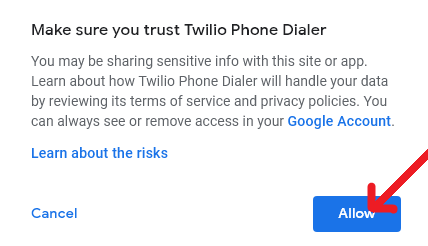
If you are signed in and sync is turned on hit the proceed button. Now you will able to see the google account permission for Twilio phone dialer. Click allow and you are done.
Default number
This number should be one of the numbers in your twilio account. Once enabled, this number will be used as the caller id for your all outgoing calls through the extension. Incoming calls to this number will be routed to your chrome extension. There must be atleast one number in your account in order to set up the default number.
Multiple twilio numbers will be routed to seperate extensions as long as the client names are distinct. If the same number is selected by two chrome extensions, the number will be reassociated with the newly registered extension.
CRM details
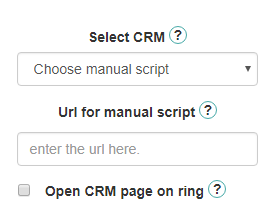
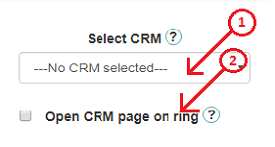
You can integrate your bussiness CRM with our extension to get the contact details about the caller or callee at the other side of the current call. Our extension will use the provided CRM's APIs and search in the Leads or Contacts within the CRM to find the contact information matching with the incoming or outgoing number during call. This will make you aware about who is calling or being called and you can see their profile page in the CRM during incoming calls. We provide support for some of the common CRMs for integration with our extension. You can select your CRM if it is present in "Select CRM" option(label 1 in figure). Other wise you will need to implement a manual script to fetch the contact details from the CRM. For this, you can select the "Choose manual script" option from "Select CRM". Detailed information about setting up the manual script or supported CRMs can be found later in this help.
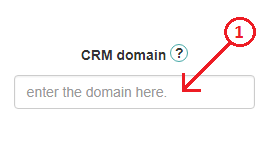
On choosing any one of the supporting CRMs, click to call, sms, and ask user option to choose where the the call or sms functionality will be added to the corresponding CRM. Numbers shown in any web pages of the CRM will be hilighted with a blue colour.You can dial to that number by just giving a click on it. The call will be started within the extension. If you are choosing "Choose manual script", then you can give a domain address in "CRM domain" field(See section "CRM domain" for more details).
You can set an option by checking the box(label 2 in figure) to open the profile page for the corresponding contact in your CRM when an incoming call comes. Otherwise the profile page will be opened once you attend the call.
Please note that, selecting a CRM is not mandatory and is not required for dialer functionality.
CRM domain
This should be the domain address of a CRM system(label 1 in figures). Once you have given a domain address in this field, any url matching this domain will be enabled for click to call functionality. Every numbers in these urls will be highlighted with a blue colour. You just need to click on any of the highlighted numbers for dialing to that number from the extension.Then the call will be initiated and you can manage it by opening the extension. Please keep in mind that currently we support only some kind of DOMs. If your experience any inconvenience, please write to us through support@nethram.com.
Twilio SID & Auth Token
Twilio uses two credentials to determine which account an API request is coming from. The “Account SID”, which acts as a username, and the “Auth Token” which acts as a password.
Step 1: Log In to your Twilio account
Step 2: Go to Dashboard
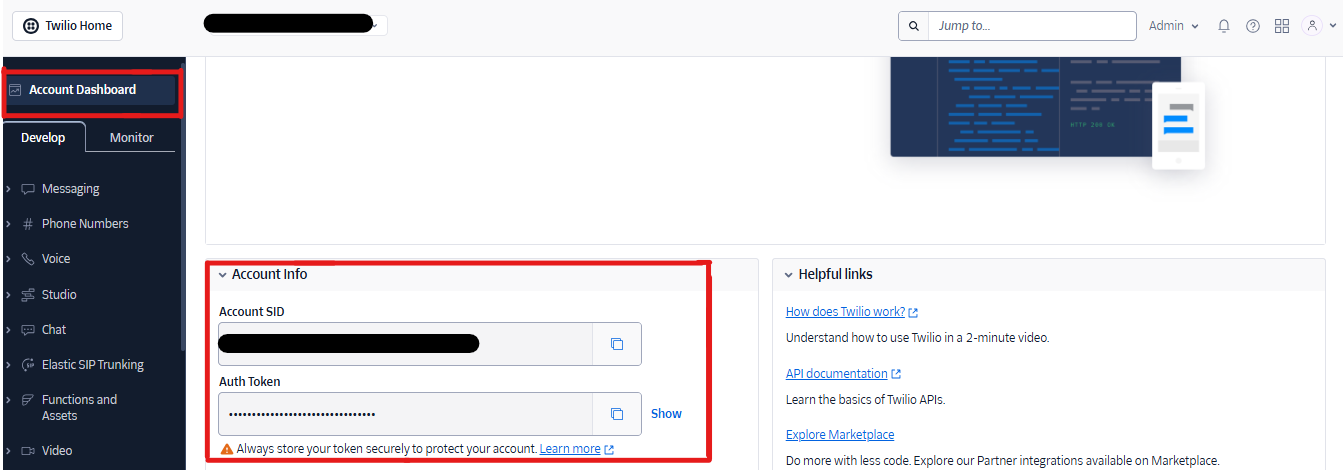
Step 3: Copy the Sid and Token(label 1 in figure)
Client name
Twilio client name is the unique identity for the chrome extension. This name should not contain any white spaces and must be unique for each user. For example, your first name can be set as the client name.
Setting up ZOHO CRM
You can integrate ZOHO CRM with our extension. This extension will search for the contact's information in your Leads and Contacts within the CRM matching with the incoming or outgoing number during a call event. For integrating ZOHO with our extension, you will need to provide your ZOHO username(label 1) and password(label 2) as shown in the figure below.

Setting up Insightly CRM
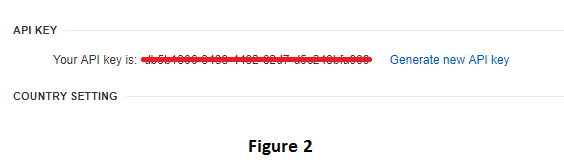
You can integrate Insightly CRM with our extension. This extension will search for the contact's information in your Leads and Contacts within the CRM matching with the incoming or outgoing number during a call event. You can get your API key from your CRM console. Go to "user settings" then scroll down to "API KEY" section(figure 2). Copy the api key in to the "API key" text box in the extension(figure 1). You can generate new API key in the console. Then you need to update the API key in settings page of the extension.

Setting up AgileCRM
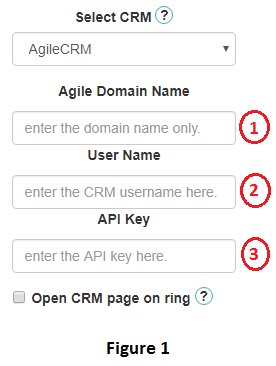
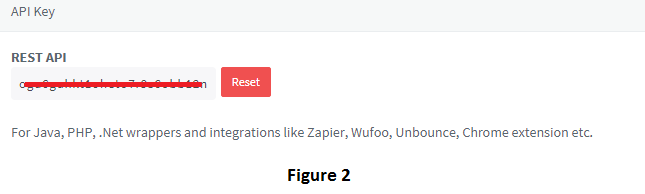
You can integrate AgileCRM with our extension. This extension will search for the contact's information in your CRM Contacts matching with the incoming or outgoing number during a call event. Inorder to integrate AgileCRM, you need to save your "Agile domain", "user name" and "API Key" in to the extension. Copy your domain of AgileCRM which you have given when creating your CRM into the text field "Agile Domain Name" in extension(label 1 in Figure 1). If you forgot your domain, it can be find from the browser URL also. For example if your CRM domain is "nethramllc", then the browser URL for the CRM pages will conatin "nethramllc.agilecrm.com". Next enter the CRM User name which you use to login in text field "User Name" in the extension(label 2 in Figure 1). You can get your API key from your CRM console. Go to "admin settings-> Developers & API -> REST API(figure 2)". Copy the api key in to the text field "API key" in the extension(label 3 in Figure 1).
Setting up Hubspot CRM
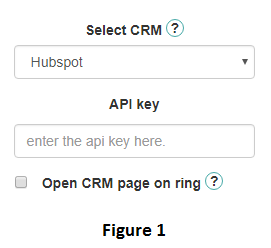
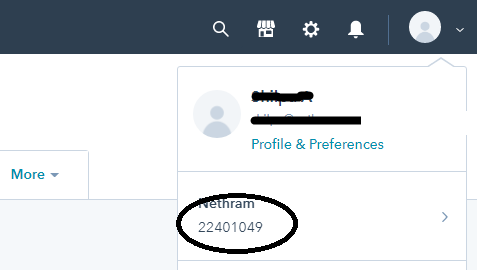
You can integrate your Hubspot CRM with our extension. This extension will search for the contact's information in your CRM Contacts matching with the incoming or outgoing number during a call event. Inorder to integrate Hubspot CRM, you need to save your "HubSpot API Key" in to the extension. You can get your HubSpot API key from your CRM console. Go to “Integrations -> Your integrations -> Installed -> HubSpot API key”. You can create new key by clicking "Create new key" or you can show current key by clicking "Show key". Now you can see your HubSpot API key(Figure 2). Copy the HubSpot API key in to the text field "API key" in the extension(Figure 1).
Setting up Manual script
You can integrate your manual script with our extension. During call events, the extension will send a "GET" request to your script with a request parameter named "phone". This parameter will contain the international formatted incoming number without "+" character at the front(example: 13024404084). The manual script allows possibilities for customization. For example, the contact details of that number can be fetched from your CRM by using the CRM APIs. Alternatively, the script can respond with the contact details stored in your datastore. Response from the script should be as shown in the figure below. The 'Content-Type' of response should be 'application/json'. The response can have two fields, "Name" field(which refers to the name of the contact matching this number parameter) and a "Url" field(Web address of the corresponding contact's profile page in the CRM). This name will be shown as caller id and the profile page in CRM will be opened in a new tab of the browser. You can test this with our sample script, which will return "Nethram llc" as "Name" and URL of a sample CRM page as "Url" in response. For testing please provide https://twilioid.com/twilioid/twilio_call_ext_server/crm.php in the text field "Url for manual script" shown in below figure.